Templates
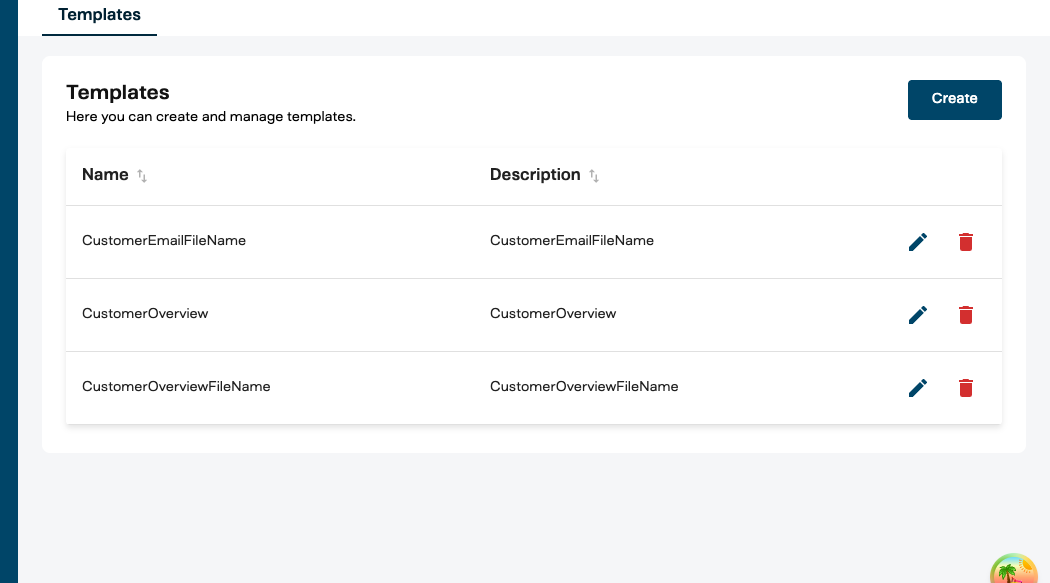
Templates are reusable text formatting definitions that turn structured data into human-readable output. They are used by playbook Template blocks to produce reports, email bodies, CRM notes, and other formatted text at runtime.
Templates are managed under Admin > Templates in the Management UI.
How Templates Work
A template is a piece of text with variable placeholders written in Liquid syntax. When a playbook runs, the Template block replaces the placeholders with actual data from earlier blocks and produces the final formatted text.
Template text (with variables) + Input data → Rendered output
Example:
Template:
Meeting summary for {{ customerName }}

Date: {{ meetingDate }}
Advisor: {{ advisorName }}

{{ summaryText }}
Input data:
customerName = "Jane Doe"
meetingDate = "2026-03-15"
advisorName = "Thomas Berg"
summaryText = "Discussed Q1 portfolio review..."
Rendered output:
Meeting summary for Jane Doe

Date: 2026-03-15
Advisor: Thomas Berg

Discussed Q1 portfolio review...
Creating a Template
- Navigate to Admin > Templates in the Management UI
- Click Create
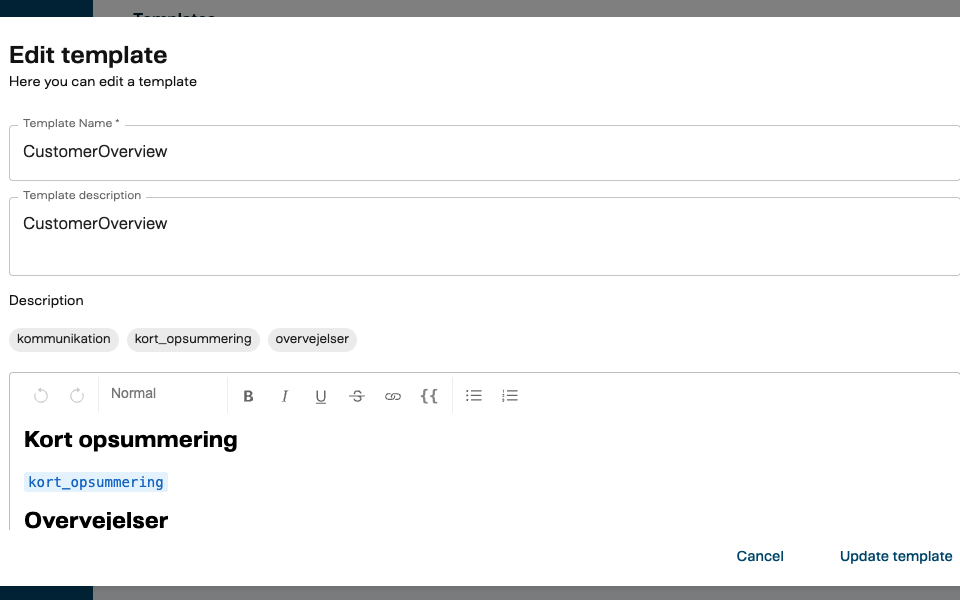
- Fill in the form:
| Field | What it does |
|---|---|
| Name | A descriptive label shown in the template list and in the playbook editor’s Value dropdown |
| Description | Optional explanation of what this template produces and when to use it |
| Content | The template text, written using the rich text editor with Liquid variable syntax |
- Click Save
Writing template content
The content editor supports rich text formatting and Liquid variable syntax. To insert a variable, type {{ variableName }} — the editor automatically detects variables and displays them as chips below the content field.
Variable names should match the field names you plan to map in the playbook. For example, if your template uses {{ customerEmail }}, the playbook’s Template block needs an input relation that maps a source field to customerEmail.
The editor extracts and displays all detected variables automatically. Use this as a quick check that your variable names are correct before saving.
Variable Syntax
Templates use Liquid syntax, which supports more than simple variable substitution.
Basic variables
{{ variableName }}
Replaced with the value provided by the playbook at runtime. If a variable has no value, it renders as an empty string — the template won’t fail.
Filters
Liquid filters transform values inline:
{{ customerName | upcase }}
{{ meetingDate | date: "%B %d, %Y" }}
{{ description | truncate: 100 }}
Logic and loops
Liquid supports conditionals and iteration:
{% if actionItems %}
Action items:
{% for item in actionItems %}
- {{ item }}
{% endfor %}
{% endif %}
The full Liquid syntax is supported. For a complete reference, see the Liquid documentation.
Using Templates in Playbooks
When you add a Template block to a playbook:
- Set Block type to Template
- Select the template from the Value dropdown — this lists all templates configured under Admin > Templates
- Connect input relations from earlier blocks to provide values for the template’s variables
How variables are mapped
Each input relation’s destination field maps to a template variable name. For example:
- If your template contains
{{ customerName }}, you need an input relation where the destination field iscustomerName - The Relation Builder’s field picker for the destination side shows all variables detected in the selected template
What the block outputs
The Template block produces a single output: the rendered text. Downstream blocks can use this output via relations — for example, an EntityPatternCreate block might write the rendered text into a CRM note field.
For step-by-step instructions on configuring Template blocks in the editor, see Step 5: Select the Block Type in the playbook user guide.
Import and Export
Templates support cross-environment portability through semantic IDs.
- Export a template from one environment and import it into another — the semantic ID ensures the template retains its identity
- If a template with the same semantic ID already exists in the target environment, the import updates the existing template rather than creating a duplicate
- When a playbook is exported, its referenced templates are included in the export. Importing the playbook automatically provisions any templates that don’t yet exist in the target environment.
Related Documentation
- Introduction to Playbooks — Template Block — what Template blocks do in a playbook
- Playbooks Integrations — Template Integration — how playbooks connect to the template system
- Playbooks User Guide — step-by-step editor instructions