Microphone Permissions
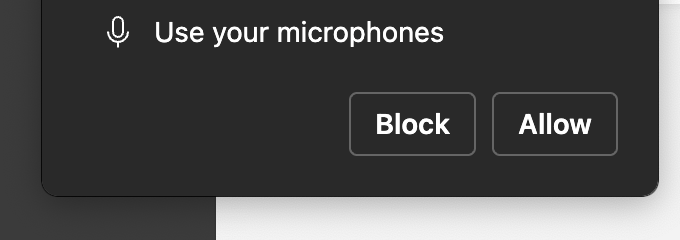
Meet needs access to your microphone to transcribe the meeting. The first time you open Meet, your browser will ask for permission.
Supported browsers: Chrome and Edge (recommended). Safari has limited support.
Allow Microphone (First Time)
- Open Meet.
- When the browser asks to use your microphone, click Allow.
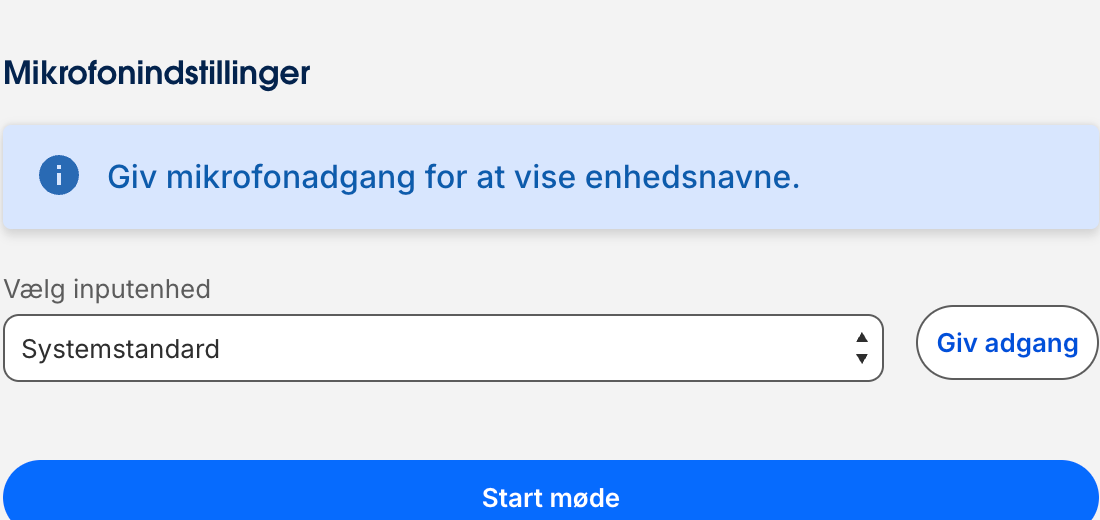
- Go back to Meet and confirm you can select a microphone device.
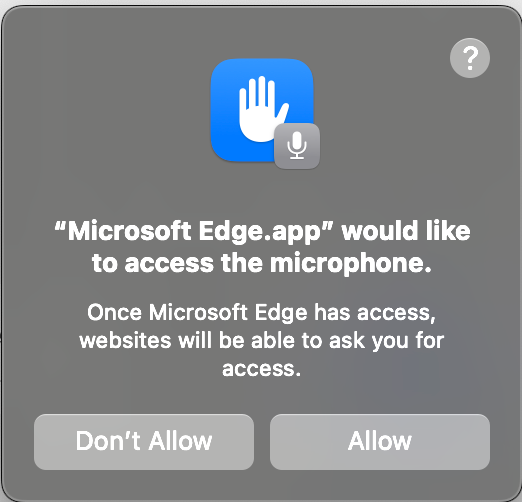
macOS prompt
On macOS, you may also see an operating system prompt asking whether your browser can access the microphone. Click Allow.
Select the Right Microphone in Meet
- In Meet, open Settings (gear icon).
- Under Microphone, choose the device you want to use (for example your headset instead of the laptop microphone).
- If you have multiple similar devices, unplug/replug your headset and re-open the selector.
If You Clicked “Block” (Chrome/Edge)
If you clicked Block earlier, Meet will not be able to access your microphone until you change the site permission.
- Open Meet.
- In the browser address bar, click the lock icon (site controls).
- Open Site settings (wording may vary).
- Set Microphone to Allow for the Meet site.
- Reload the page.
Common Issues
| Symptom | What you can do |
|---|---|
| No microphone prompt appears | Check you didn’t previously block microphone access (see the section above). Try Chrome/Edge. If nobody in your organization ever gets the prompt, contact your admin (see below). |
| Microphone list is empty in Meet | Confirm the browser permission is Allowed. Reload the page after changing permissions. Unplug/replug your headset and re-select the device in Meet settings. |
| Transcription is poor or intermittent / wrong mic is used | Select your headset microphone explicitly. Avoid duplicate devices (Bluetooth headset + dock + laptop mic) and reconnect the device. |
| Mic works in other apps but not in Meet | Check OS microphone privacy settings (next section). |
OS Privacy Checks (If Browser Permission Is Correct)
macOS
- Open System Settings.
- Go to Privacy & Security → Microphone.
- Ensure Chrome/Edge is allowed.
Windows 11
- Open Settings.
- Go to Privacy & security → Microphone.
- Ensure microphone access is enabled, and that your browser is allowed (if shown).
Managed Devices (Policies)
If you are on a managed company device, your IT department may lock microphone settings or pre-approve access. If you cannot change the setting, contact IT support.
When to Contact Your Admin
If nobody in your organization gets a microphone prompt when opening Meet, your admin may need to adjust your organization’s settings.
If you use Meet in Salesforce
Your Salesforce admin may need to adjust Salesforce org settings for Meet. Admin reference: Salesforce Setup